Supplier credit notes, filled in for you
Returns, warranty credits and pricing corrections all come back as credit notes. Data Entry Pro spots a credit note, finds the original invoice it relates to, and fills in the credit note in MechanicDesk with the right lines and amounts.
Why it's a pain to do by hand
Credit notes are easy to put off and easy to get wrong: negative amounts, the original invoice number to find, lines to match. Left undone, your supplier balance never agrees with their statement.
How Data Entry Pro does it
- 1
Upload or email the credit note. It's recognised as a credit note automatically.
- 2
The original invoice number it credits is read from the document.
- 3
Choose Credit Note on the review screen and check the lines.
- 4
The matching credit note in MechanicDesk is filled in with the lines and amounts.
What ends up in MechanicDesk
- Credit notes recognised automatically
- Original invoice number picked up
- Lines and amounts filled in
- Checked on the review screen first
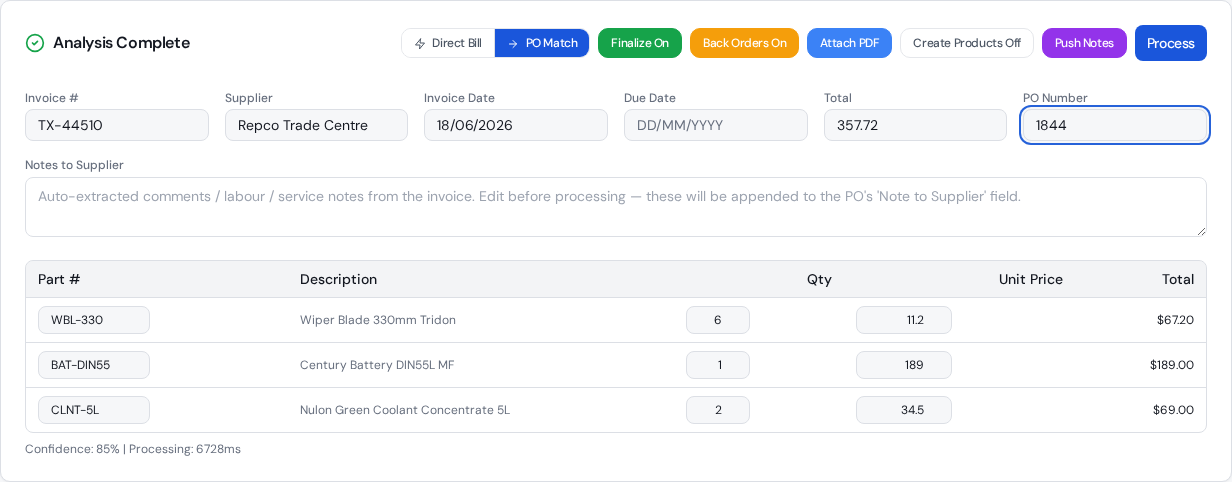
The settings that control it
Credit Note mode
Chosen on the review screen; picked for you when the document says Credit Note.
Frequently asked questions
Does it create the credit note in MechanicDesk?
It fills in the credit note that's set up in MechanicDesk for that supplier with the correct lines and amounts.
Related workflows
Direct bill automation
No purchase order? Data Entry Pro creates the supplier bill in MechanicDesk straight from the invoice PDF: supplier, reference, dates, every line, expense account and the PDF attached.
Read moreGST & bookkeeping
GST-free lines, suppliers not registered for GST, insurance and rego bills with stamp duty, expense accounts per supplier and buying groups like Capricorn, handled before the bill reaches Xero.
Read moreEmail invoice inbox
Every Data Entry Pro account gets its own invoice email address. Set a forwarding rule or give it to your suppliers and invoices arrive ready to check and send to MechanicDesk.
Read moreReady to stop keying invoices?
7-day free trial. 10 invoices on us. No credit card required.