MechanicDesk purchase order automation
You raise a purchase order in MechanicDesk, the parts arrive, and then someone has to open the PO, compare it line by line against the supplier's invoice, fix the prices, receive it and create the bill. Data Entry Pro does that whole sequence for you, starting from the invoice PDF.
Why it's a pain to do by hand
Matching an invoice to a PO by hand is slow because it's a comparison job: part numbers formatted slightly differently, prices that changed since you ordered, an extra line the supplier added, freight. Each one needs a decision, and it's easy to receive a PO with the wrong cost price or forget to attach the invoice.
How Data Entry Pro does it
- 1
Upload the supplier's invoice PDF and choose PO Match. The PO number is read straight off the invoice, so there's nothing to type.
- 2
Data Entry Pro finds that purchase order in your MechanicDesk and lines up each invoice line with the PO line it belongs to.
- 3
Unit prices on the PO are updated to what the supplier actually charged.
- 4
Any invoice line that wasn't on the PO is added to it, linked to your existing stock item when you have one (freight goes to your FREIGHT item).
- 5
The PO is received and the bill is created against it, with the original PDF attached.
What ends up in MechanicDesk
- PO found by the number printed on the invoice
- Prices synced to the invoice
- Missing lines added to the PO
- PO received in MechanicDesk
- Bill created and linked to the PO
- Invoice PDF attached to the bill (and the PO if you want)
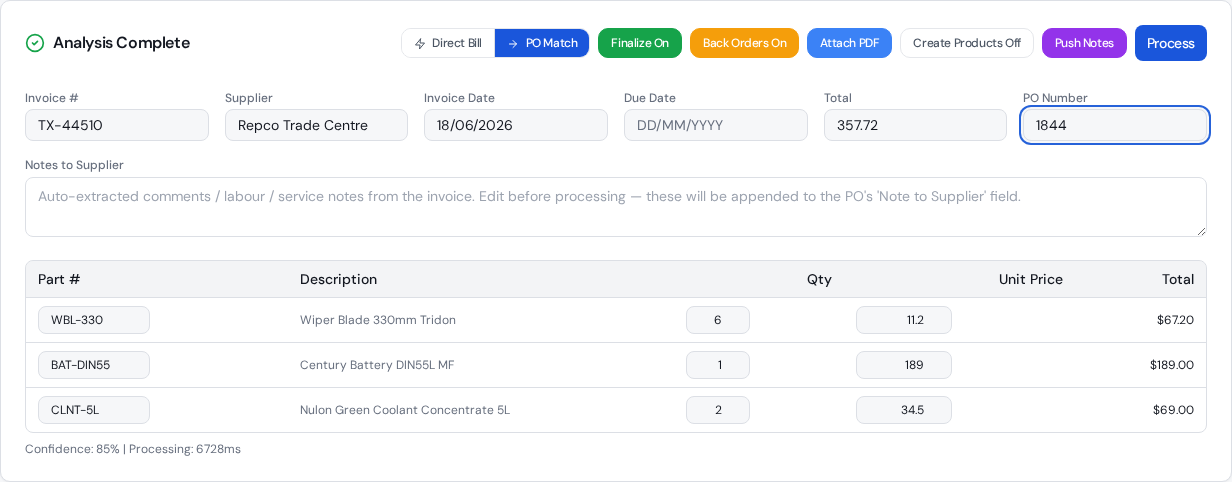
The settings that control it
Back Orders On/Off
What happens when the invoice only covers part of the PO. See back order automation.
Finalize On/Off
Finalise the bill, or leave it In Progress so you can check it first.
Push Notes
Copy notes printed on the invoice into the PO's note field.
Copy Of The PDF On The Purchase Order
In Settings. Attach the PDF to the PO as well as the bill.
Frequently asked questions
Do I have to type the PO number in?
No. Data Entry Pro reads the PO or order number the supplier printed on the invoice and looks it up in MechanicDesk. Ask suppliers to quote your MechanicDesk PO number when you order and it works every time.
Does every invoice line need to be on the PO already?
No. Lines that are on the PO are matched and repriced, and lines that aren't are added. You only need the PO itself to exist in MechanicDesk.
What if the PO has already been received?
It won't edit an already-received PO. If MechanicDesk created a back order PO from it (e.g. 3333125/1), the invoice goes to that open back order instead. If there's nothing open, it stops and tells you, and changes nothing.
Will the parts show up on the job?
If you raised the PO from inside the job in MechanicDesk, it stays connected to that job. Data Entry Pro bills against the PO and doesn't move it between jobs.
What if I process the same invoice twice?
It checks for an existing bill with that invoice number first. A second run is a safe no-op instead of a duplicate bill.
Related workflows
Back order automation
When a supplier only sends part of your order, Data Entry Pro receives what arrived, lets MechanicDesk create the back order PO, and sends the next invoice to the open back order automatically.
Read moreParts receipting
Receive parts into MechanicDesk from the supplier invoice: correct quantities, latest cost prices and the bill created, with part deliveries and back orders handled.
Read moreSupplier invoice matching
How Data Entry Pro matches supplier invoice lines to your MechanicDesk stock and PO lines, including supplier part numbers, formatting differences and freight, without creating duplicate items.
Read moreReady to stop keying invoices?
7-day free trial. 10 invoices on us. No credit card required.