Your own invoice inbox: forward it and forget it
Every account gets a dedicated email address. Point your suppliers at it, or set a forwarding rule in Gmail or Outlook, and supplier invoices land in Data Entry Pro on their own, already read and waiting for you.
Why it's a pain to do by hand
Invoices arrive by email all day. Someone has to open each one, download the PDF and upload it somewhere. With an inbox address that step disappears: the email arrives, the PDF is read, and it's waiting in your Inbox when you sit down.
How Data Entry Pro does it
- 1
Open the Inbox page to see your address, e.g. yourbusiness-ab12c@inbox.dataentrypro.com.au.
- 2
Set a forwarding rule (e.g. emails from your parts supplier with a PDF attached) or ask suppliers to send invoices straight to it.
- 3
Each PDF attachment is read automatically and waits in your Inbox with a count on the dashboard.
- 4
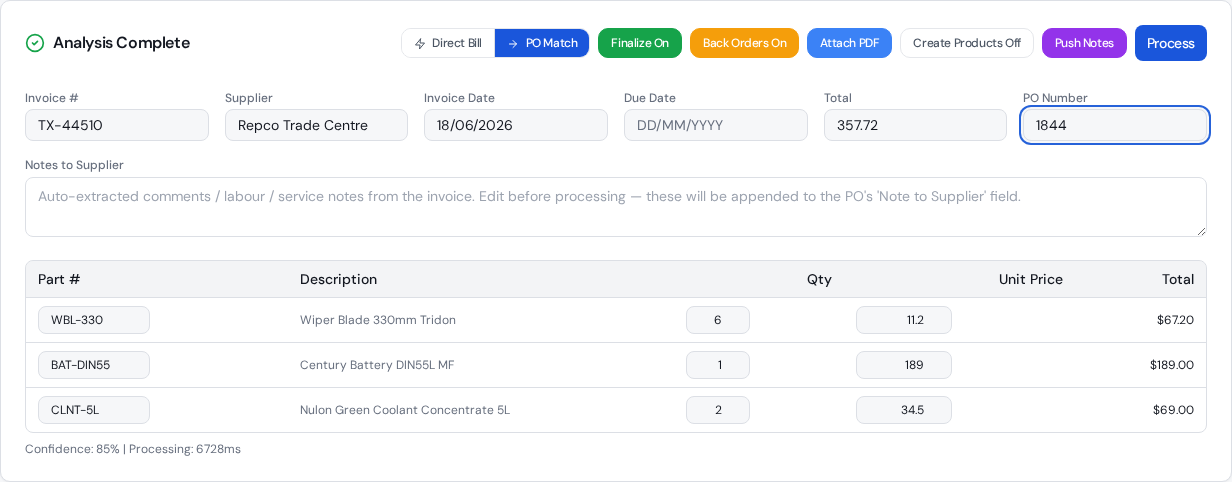
Check it, choose PO Match, Direct Bill or Credit Note, and send it to MechanicDesk.
What ends up in MechanicDesk
- A private address just for your workshop
- Works with Gmail, Outlook and any email forwarding rule
- Every PDF attachment read automatically
- Duplicate emails ignored, nothing processed twice
- Inbox count on your dashboard
- Drag and drop still works alongside it
The settings that control it
Inbox address
Shown on the Inbox page. Copy it into your forwarding rule or send it to your suppliers.
Inbox defaults
Choose the default mode and options used for emailed invoices.
Frequently asked questions
Do invoices go into MechanicDesk without me checking?
No. Emailed invoices are read and wait in your Inbox. You check them and choose how they go into MechanicDesk.
Can my suppliers email it directly?
Yes. Give them the address, or forward from your own mailbox with a rule. Both work.
What if the same invoice is emailed twice?
Repeats are detected, so the same invoice isn't processed twice.
Related workflows
Direct bill automation
No purchase order? Data Entry Pro creates the supplier bill in MechanicDesk straight from the invoice PDF: supplier, reference, dates, every line, expense account and the PDF attached.
Read morePurchase order automation
Automate MechanicDesk purchase orders: Data Entry Pro reads the PO number off the supplier invoice, matches every line, updates prices, receives the PO and creates the bill with the PDF attached.
Read moreGST & bookkeeping
GST-free lines, suppliers not registered for GST, insurance and rego bills with stamp duty, expense accounts per supplier and buying groups like Capricorn, handled before the bill reaches Xero.
Read moreReady to stop keying invoices?
7-day free trial. 10 invoices on us. No credit card required.